EA SPORTS NHL® 27 Connected Franchise: Guide for Managers
1 min read
Overview
You can join an NHL 27 Connected Franchise League with a League ID or invitation and compete against other Managers. Learn how to manage your roster, play League games, and check your League stats and standings.
A League in Connected Franchise mode lets you manage your own team and compete head-to-head against other Managers across a season. You can play through multiple seasons using the same League, so you can keep building your team and competing with your group. When you join a Connected Franchise League, you become aManager and take control of one team. As a Manager, you can:
manage your team and lines
play scheduled games against other Managers
trade players with other teams
claim free agents
check standings, stats, and League activity
view League announcements and transaction updates.
Each League has a Commissioner who manages the League, while you focus on your team and competing against other Managers. Learn more about how Commissioners set up and manage Leagues.
How do I join a League in Connected Franchise mode?
You can join a League using its unique League ID or an invitation.
Join a League with a League ID
Join a League with a League ID
How do I accept an invitation?
How do I accept an invitation?
If a Commissioner shares a League ID with you, use it to find and join their League:
1
From the main menu, select Connected Franchise
2
Select Enter Existing League ID,enter the League code, and select Search.
3
After the League appears, choose Join This League.
This will only appear if the League code you entered is valid.
4
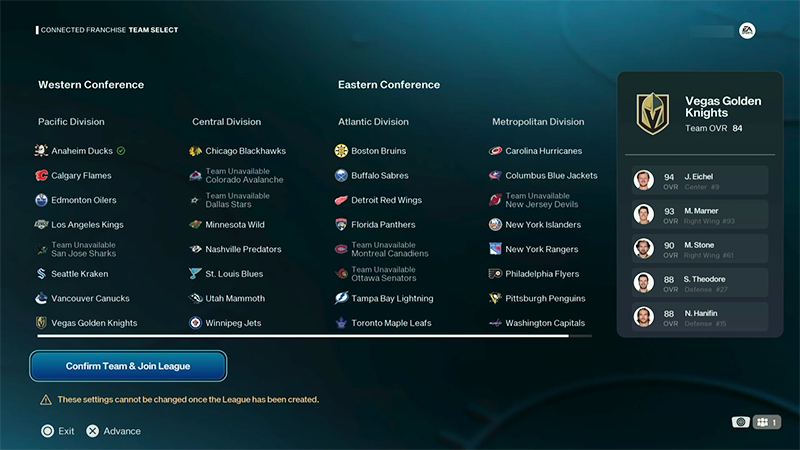
Choose the team you want to play.
You can’t change these settings after the League has been created.
5
Select Confirm Team & Join League.
A join request will be sent to the League Commissioner. If they accept your request, you’ll join the League.
If you have an invite pending:
1
Go to Pending Invites under Connected Franchise.
2
Choose the League invitation you want to accept.
3
Select Accept.
4
Choose an available team.
5
Select Join League.
You can be in up to five Leagues.
1
Open the League tab under Connected Franchise.
2
Choose Leave League from the menu on the left of your screen.
You can leave a League at any time. Leaving the League cancels your outstanding trade requests and pending free agent claims.
How do I manage my team in a League?
Go to Connected Franchise from the main menu and use the My Team tab to manage your lineup and roster during the Regular Season.
Manage your lineup
Use My Team to edit your lines, change your playbook, and prepare your lineup for upcoming games.
Trade players
Propose trades with other Managers, respond to trade offers, and use the Edit My Trade Block to show which players you're interested in moving.