Overview
You can trade players in EA SPORTS NHL® 27 Connected Franchise mode before the playoffs begin. Learn how to propose and accept trades, manage your trading block, and claim free agents to improve your roster.
How does trading work in Connected Franchise?
In Connected Franchise, you can negotiate trades directly with other Managers before the playoffs begin. Both Managers must accept the trade before your League Commissioner can approve it.New to Connected Franchise? Learn how Connected Franchise works in NHL 27.
How do I propose a trade?
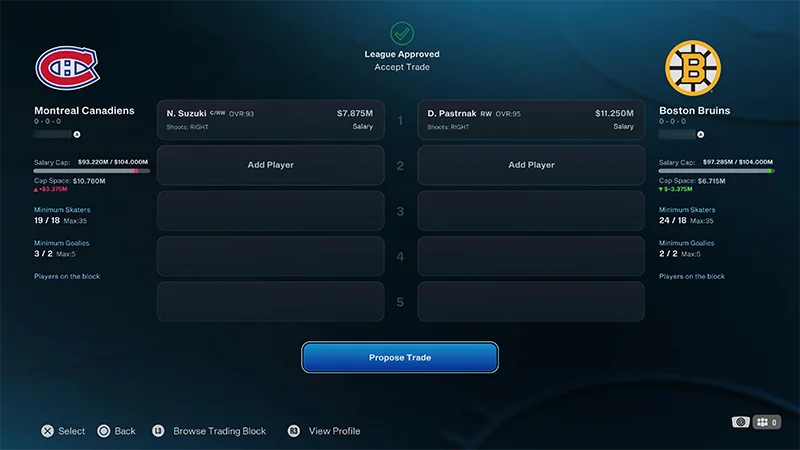
You can propose a trade with another Manager and include up to five players in the trade.- 1From the Connected Franchise menu, select My Team.
- 2Choose Propose New Trade from the menu on the left.
- 3Select Add Player to choose players you want to trade.
- 4Add at least one player per side of the trade, then select Propose Trade to make your offer.
- If the trade doesn’t meet the other team’s salary cap or roster limits, you can still Propose Trade. It’s up to the other Manager to accept it and the Commissioner to approve it.
- 5Your trade offer will be sent to the other Manager’s inbox.
No. Trades are limited to players, so you can’t include draft picks in a trade.
Go to Inbox, and it will appear as ‘Sent Trade Proposal’. On the right, you’ll see your proposed trade offer and its current status. You can propose a new offer while it’s still pending by selecting Propose New Trade.
How do I accept a trade?
- 1Open your Inbox.
- 2Choose a request from the menu on the left.
- Use filters to find Trade Offers.
- 3Choose Accept Trade, Decline Trade, or Edit Trade.
- 4Accepted trades go to your commissioner. They can then Accept Trade or Veto Trade.
- 5A trade is final after it’s been approved by your commissioner.
You’ll be alerted in your inbox if your trade gets vetoed or declined. From here, you can:
- Edit Trade to adjust the offer
- You’ll return to the Propose Trade screen with the original trade.
- Propose New Trade to make a completely new offer
- Delete a trade offer to remove the item from your mailbox.
Your league’s commissioner oversees trades and sets the rules. They can veto any trades they consider unfair or unbalanced.
What’s the trade block?
The trade block, or trading block, lets you list up to five players you’re willing to trade and show other Managers what you want in return. To use it:- 1Select My Team from the Connected Franchise menu.
- 2Choose Edit Trade Block from the menu on the left of the screen.
- 3Add and remove players on the left.
- 4Enter Surplus and Wants on the right to show what you’d want in return for each player.
How do I claim free agents?
- 1Select My Team from the Connected Franchise menu.
- 2Select Make Free Agent Claim on the left-hand menu.
- 3Use filters to find free agents who fit your team.
- 4Select a player to start your bid.
- You can only bid once per free agent.
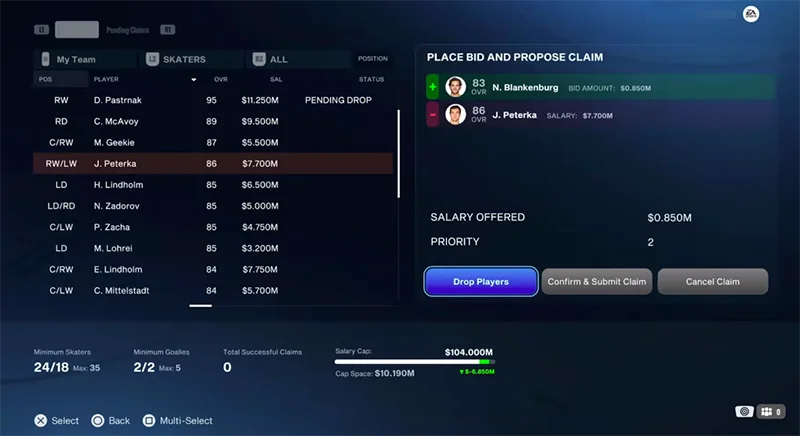
- 5Enter your Salary Offered and set your claim Priority.
- 6Select Confirm & Submit Claim.
View your active bids at My Team > Manage Pending Claims.You can also see pending claims by switching tabs on the Claim Free Agents screen. Claims are listed by priority. You can edit, reorder or delete your bids from this screen.
How do I drop players?
- 1Go to Connected Franchise from the main menu
- 2Tab to My Team
- 3Select Make Free Agent Claim on the left-hand menu.
- 4Use filters to find free agents who fit your team.
- 5Select a player to start your bid.
- 6You can only bid once per free agent.
- 7Enter your Salary Offered and set your claim Priority.
- 8Select Drop Players
- 9Select a player from your team roster
- 10Select Confirm & Drop Players to confirm your bid.
- You can add multiple players as pending drops.
- You can’t drop players who are part of an accepted but unapproved trade.
- You can drop players who are part of trade requests that haven’t been accepted yet.
- If you’re dropping players as part of a free agent claim, they’ll remain as pending drops until the claim processes. Select Confirm & Submit Claim to confirm your bid.
- If there’s no free agent claim attached, select Confirm & Drop Players to immediately remove the players from your roster.