Overview
Learn how to add games to your Library, add friends, and more in the EA app.
What is the EA app?
The EA app is where you’ll find, install, and play EA games on your computer. For more info on the EA app, check out the EA app page.If you haven’t already downloaded the EA app, learn how to in our guide.Did you move from Origin to the EA app? All your games and other content will automatically transfer over.
How to buy and download games in the EA app
Buy games
Download games
Redeem codes
Check out this article to learn how to buy games using the Browse option on the EA app. All games you’ve bought can be found in your Library.
How to edit your profile
Set a nickname by selecting My profile from the menu. To bring up this menu, select your username in the top-right corner. To change your avatar:- 1Open My Profile from the menu by selecting your username in the top-right corner.
- 2Select Edit profile.
- 3Go to Edit Avatar to choose a new avatar.
Manage your settings on the EA app
Find the Settings panel
You’ll find Settings in the menu icon (three stacked lines) at the top-left corner. Use it to edit your account details, change language preferences, track playtime, manage how you receive notifications, and more.Watch our video guide to learn how you can manage your settings on the EA app.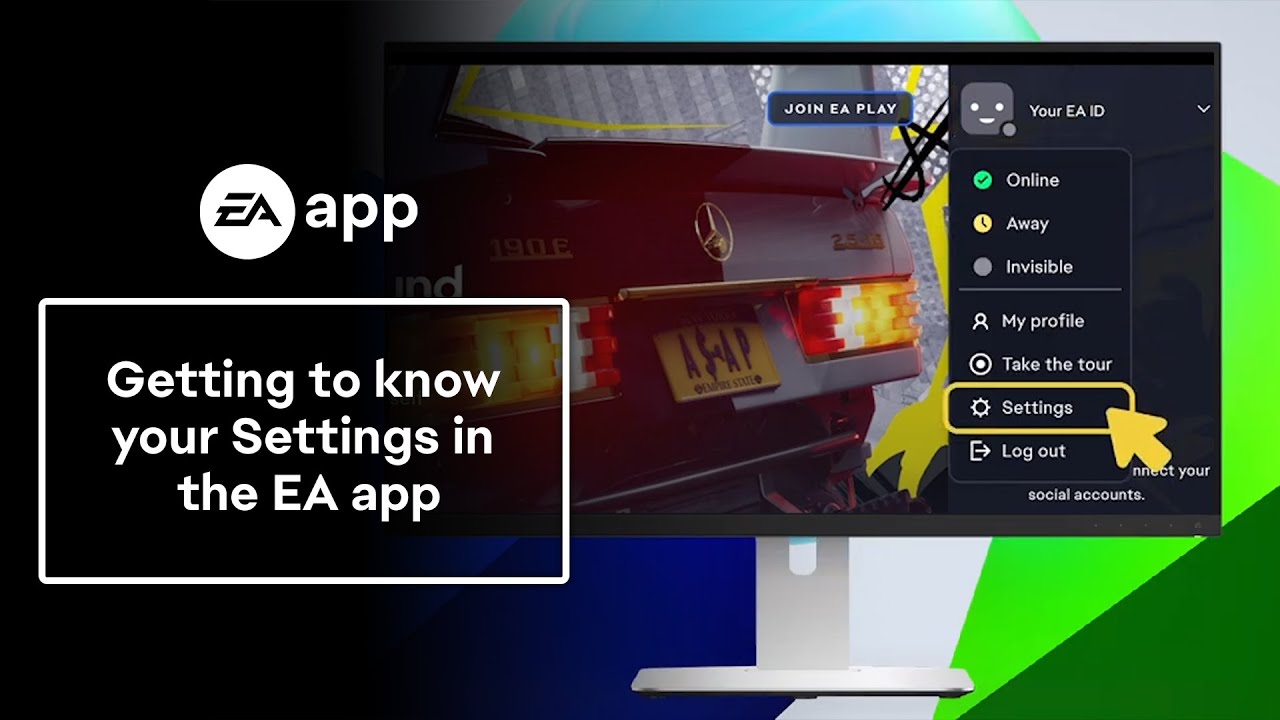
Update account details
You can access the Account Information page through the EA app to edit your name, email address, EA ID, password, and more.- 1Log in to your EA Account through the EA app.
- 2Select the menu icon (three stacked lines at the top-left corner).
- 3Go to Settings and choose My account.
- 4Select Manage under My profile to go to your account settings.
Track and set playtime
You can track your playtime from My Playtime in Settings. Check out this article to learn more about playtime tracking.You can track your teen’s playtime by opening your Settings, then choosing Family Playtime.- Learn more about how to add teen accounts, track their playtime, and set spending limits.
- Find out more about teen accounts and when to upgrade a child account to a teen one.
Change language settings
Follow these steps to change your language settings in the EA app or in your game.Change notification settings
To control how you get notifications in the EA app:- 1Open Settings.
- 2Select Application.
- 3Use the Notifications panel to choose how and when you want to be notified.
How to use the view option
Need to reload a page?- 1Choose View from the menu icon (three stacked lines) in the top-left corner.
- 2Select Reload page.