Visão geral
Precisa de auxílio para instalar ou gerenciar um Pacote do The Sims 4? Use este guia para instalar Pacotes de Expansão, Pacotes de Jogo e Coleções de Objetos no The Sims 4 e controle tudo com o recurso de Seleção de Pacote.
Instalando Pacotes do The Sims 4 no PC e no Mac
Antes de instalar qualquer conteúdo adicional para The Sims 4, veja se o Jogo Básico está instalado e atualizado. Leia nosso guia que ensina como instalar o Jogo Básico do The Sims 4.Os Pacotes Digitais devem ser instalados automaticamente após a compra. Se isto não acontecer, veja como instalá-los manualmente.Compra digital no EA app
- 1Abra o EA app.
- 2Se for solicitado, faça login usando as informações da sua Conta EA.
- 3Abra a sua Biblioteca e clique em The Sims 4.
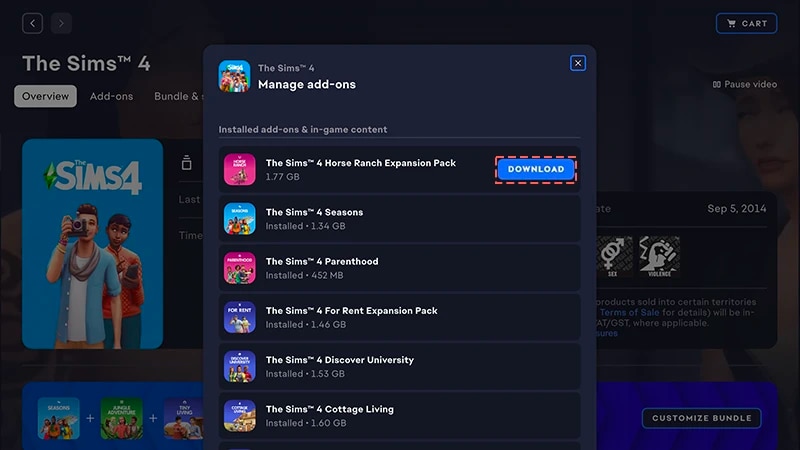
- 4Clique em Complementos para ver quais pacotes você tem.
- 5Caso você tenha um Pacote e ele não tiver sido automaticamente instalado, clique no ícone de Download.
Instalar uma compra de código do produto para o EA app
- 1Abra o EA app.
- 2Se for solicitado, faça login usando as informações da sua Conta EA.
- 3Abra a Biblioteca.
- 4Clique em Resgatar Código.
- 5Digite o código do produto, clique em Avançar e, depois, em Confirmar.
- 6Clique em Download no EA app.
O EA app substituiu o Origin como a principal plataforma para fazer download e iniciar o The Sims 4 para Mac e PC. Os usuários do Mac precisam utilizar o macOS Catalina ou posterior para executar o EA app. Veja o nosso guia do macOS para saber como fazer upgrade do seu macOS.
Se você comprou um Pacote em disco (somente PC)
- 1Insira o disco do jogo na sua unidade de disco e siga as instruções na tela.
- 2Quando solicitado, digite o código do produto incluído com o disco de instalação.
- 3Depois de resgatar o pacote, você poderá vê-lo na página de detalhes do The Sims 4 na guia Biblioteca.
- 4Quando a instalação for concluída, selecione o The Sims 4, depois Jogar para iniciar o jogo.
Como conferir se um Pacote do The Sims 4 está instalado
- 1Abra a Biblioteca no EA app.
- 2Clique no ícone do jogo The Sims 4.
- 3Selecione Gerenciar.
- 4Escolha Gerenciar Complementos.
- 5No pop-up, aparecerá uma lista com os complementos que você tem. Os complementos instalados e o conteúdo do jogo são aqueles que você possui e já tem instalados. Complementos para download são os que você tem, mas ainda não foram instalados.
- 6Clique no ícone Download para quaisquer complementos ainda não instalados.
Seleção de Pacote do The Sims 4
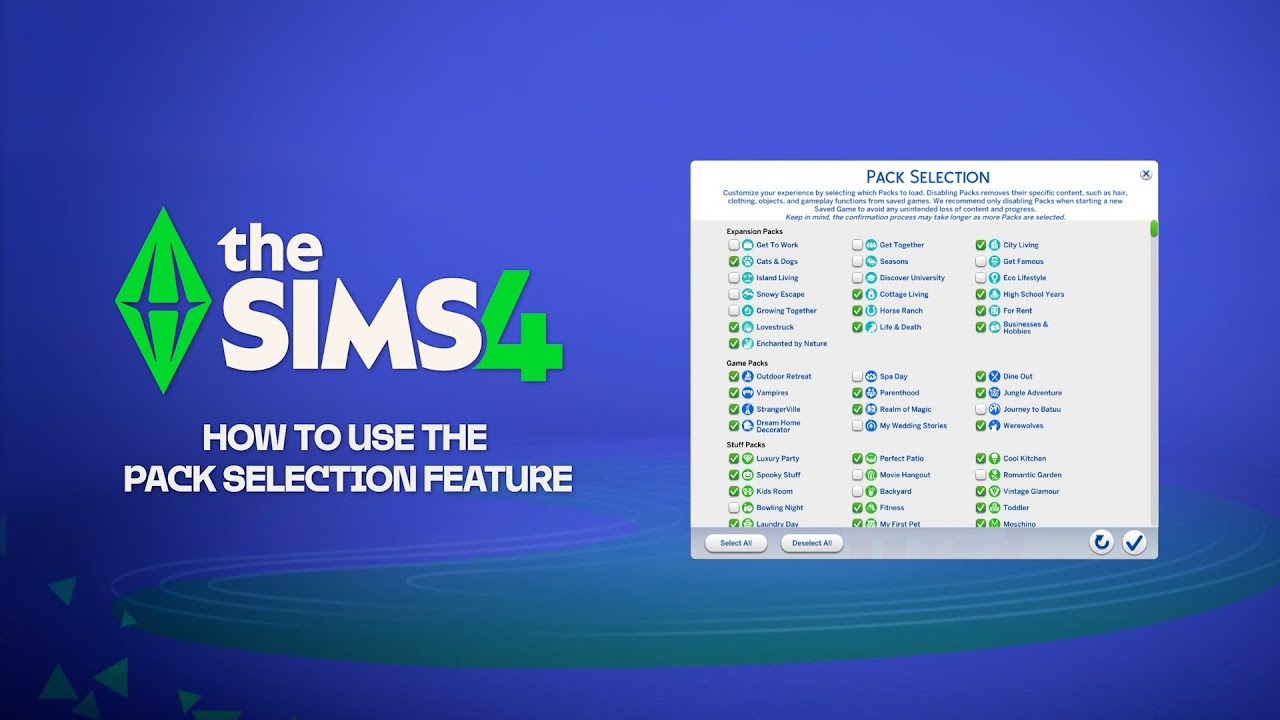
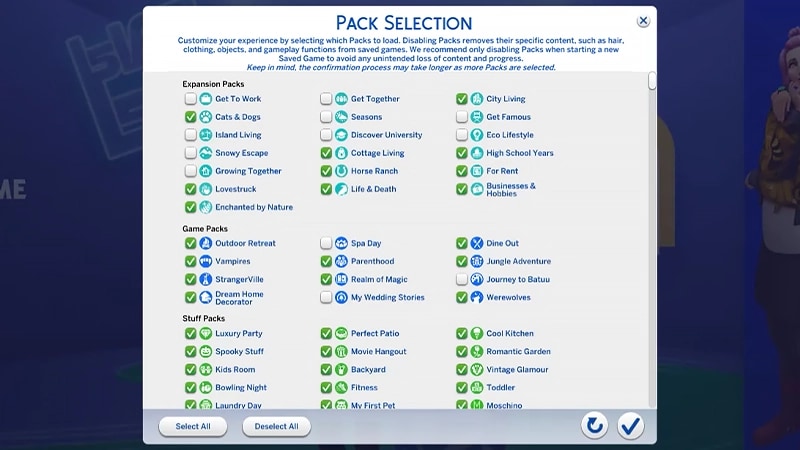
A Seleção de Pacote é um recurso que permite escolher quais Pacotes você deseja instalar. Isto é útil para a narrativa e para a sua experiência no jogo, além de liberar recursos sem precisar desinstalar Pacotes que não estão sendo usados. A Seleção de Pacote está disponível em todas as plataformas: PC, Mac e console. Veja como carregar ou descarregar Pacotes do seu jogo:- 1Abra o Menu Principal e escolha a opção Seleção de Pacote.
- 2Marque ou desmarque os Pacotes que você deseja carregar ou descarregar do jogo.
- 3Selecione o botão de verificação para confirmar as suas escolhas.
Remover Pacotes pode impactar arquivos salvos já existentes, então é melhor usar este recurso quando criar um novo jogo salvo para evitar a perda de conteúdo ou progresso.Recomendamos desabilitar todas as Modificações antes de descarregar ou recarregar qualquer Pacote. Leia nosso artigo sobre como desativar Modificações. Sempre verifique se você tem um backup dos seus arquivos salvos. Para saber mais a respeito, confira nosso guia.
Carregando um arquivo salvo com Pacotes ausentes
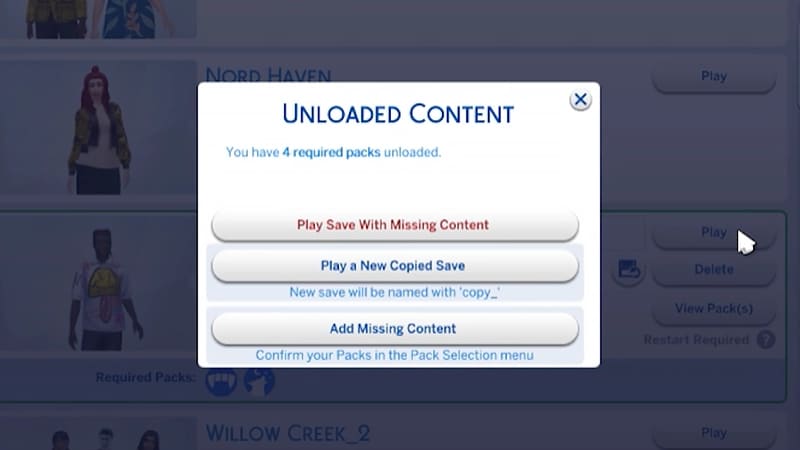
Você saberá se um arquivo salvo está com Pacotes ausentes com os seguintes indicadores.- Quando você tentar carregar o arquivo salvo, receberá um aviso antes de jogar, informando que há Pacotes ou conteúdo faltando.
- Se você abrir o menu Seleção de Pacote, qualquer Pacote que não tiver um ícone de verificação ao lado não estará carregado.
- No PC, qualquer arquivo salvo com conteúdo ausente mostrará se os Pacotes necessários para jogar estão carregados por meio dos ícones Pacotes Necessários.
Se seus Sims estavam vivendo em um mundo específico de um Pacote que você descarregou do jogo, a sua Família/Grupo continuará disponível no menu Gerenciar Famílias/Grupos. Nele, é possível movê-la para um novo Lote ou mesclá-la com outra Família/Grupo.Atenção: quaisquer itens ou Traços do Criar um Sim que sejam específicos de um Pacote serão removidos, a não ser que você recarregue o Pacote com o jogo.