ข้อมูลโดยรวม
The Sims 4 Pack ของคุณควรติดตั้งโดยอัตโนมัติ หากไม่มีการติดตั้ง คู่มือแนะนํานี้จะอธิบายวิธีติดตั้งแพ็กบน PC, Mac และคอนโซล รวมถึงเรียนรู้วิธีตรวจสอบว่ามีแพ็กติดตั้งไว้หรือไม่โดยใช้คุณสมบัติ Manage Storage และวิธีเปิดหรือปิดใช้งานแพ็กด้วยคุณสมบัติ Pack Selection
ฉันจะติดตั้ง The Sims 4 Pack บน PC และ Mac ได้อย่างไร?
EA app มาแทน Origin ในฐานะแพลตฟอร์มหลักสําหรับการดาวน์โหลดและเปิด The Sims 4 ทั้งใน Mac และ PC แล้ว ผู้ใช้ Mac จำเป็นต้องใช้ macOS Catalina หรือใหม่กว่าเพื่อเปิดใช้ EA app โปรดดูคู่มือแนะนำสําหรับ macOS ของเราเพื่อดูข้อมูลเพิ่มเติมเกี่ยวกับการอัปเกรด macOS ของคุณ
- 1เปิดโปรแกรม EA app
- 2เมื่อได้รับข้อความแจ้งเตือน ให้เข้าสู่ระบบโดยใช้ข้อมูลบัญชี EA ของคุณ
- 3เปิด คลัง แล้วเลือก The Sims 4
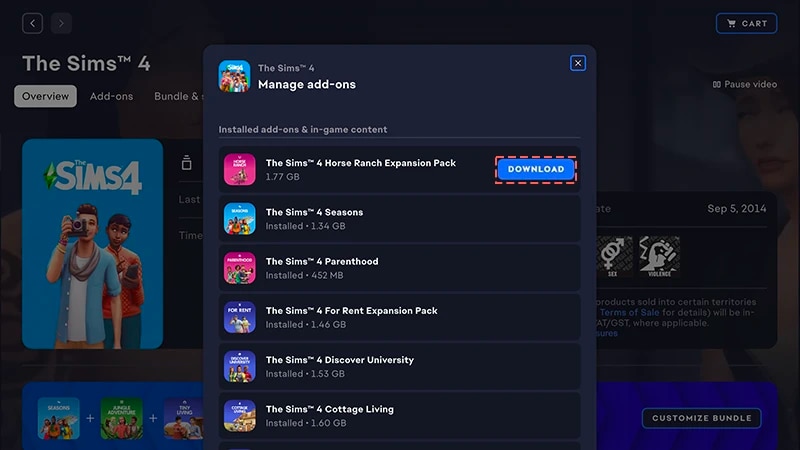
- 4เมื่อต้องการตรวจสอบว่าคุณเป็นเจ้าของแพ็กใดอยู่ในปัจจุบัน ให้เลือก จัดการ แล้วตามด้วย จัดการส่วนเสริม ข้างใต้
- 5หากคุณเป็นเจ้าของแพ็กและไม่ได้ติดตั้งแพ็กโดยอัตโนมัติ ให้คลิกที่ไอคอน ดาวน์โหลด ด้านข้าง
ฉันจะติดตั้งแพ็กที่ได้มาจาก Marketplace ได้อย่างไร?
ดูคู่มือแนะนําของเราเพื่อเรียนรู้เพิ่มเติมเกี่ยวกับ The Sims 4 Marketplace และวิธีการทํางาน
- Expansion Pack
- Game Pack
- Stuff Pack
- Kit
- 1เปิด The Sims 4 แล้วไปที่ Marketplace
- ใน Main Menu ให้เลือก Marketplace ที่ด้านบนของหน้าจอ
- หรือเลือกไอคอนตะกร้าสินค้าที่มุมขวาบนขณะอยู่ใน Live Mode, Build Mode หรือ Create a Sim
- 2เลือกแท็บ My Collection แล้วเลือก Manage Storage
- 3หาแพ็กที่คุณซื้อมาแล้วตรวจสอบที่มุมซ้ายล่างของแผ่นรูปแพ็กเพื่อยืนยันสถานะการติดตั้ง
- ข้อความ Installed สีเขียวหมายถึงมีการติดตั้งแพ็กดังกล่าวแล้ว
- ข้อความ Not Installed สีเทาหมายถึงไม่มีการติดตั้งแพ็กดังกล่าว
- 4หากไม่มีการติดตั้งแพ็กของคุณโดยอัตโนมัติ ให้เลือกช่องทําเครื่องหมายที่มุมซ้ายบนเพื่อเพิ่มเครื่องหมายถูกในช่อง
- 5เลือก Install จากนั้นเลือกปุ่มเครื่องหมายถูกในการแจ้งเตือนแบบป็อปอัปเพื่อยืนยันว่าคุณต้องการติดตั้งแพ็ก
ฉันจะติดตั้งแพ็กที่มีรหัสผลิตภัณฑ์ใน EA app ได้อย่างไร?
- 1เปิดโปรแกรม EA app
- 2เมื่อได้รับข้อความแจ้งเตือน ให้เข้าสู่ระบบโดยใช้ข้อมูลบัญชี EA ของคุณ
- 3เปิด คลัง ของคุณแล้วเลือกปุ่ม + ใช้รหัส
- 4กรอกรหัสผลิตภัณฑ์ จากนั้นให้เลือกถัดไปแล้วตามด้วยยืนยัน
- 5เลือกดาวน์โหลดด้วย EA app
ฉันจะติดตั้งแพ็กจากแผ่นเกมลงบน PC ได้อย่างไร?
- 1ใส่แผ่นเกมลงในไดรฟ์อ่านแผ่นของคุณ แล้วทําตามคำแนะนำบนหน้าจอ
- 2เมื่อได้รับข้อความแจ้ง ให้เข้าสู่ระบบของ EA app โดยใช้ข้อมูลบัญชี EA ของคุณ
- 3เมื่อมีการร้องขอ ให้กรอกรหัสผลิตภัณฑ์ที่มีมาให้พร้อมแผ่นสำหรับการติดตั้ง
ฉันจะติดตั้ง The Sims 4 Pack บนคอนโซลได้อย่างไร?
ดูข้อมูลเพิ่มเติมเกี่ยวกับวิธีเล่น The Sims 4 บนคอนโซล รวมถึงเคล็ดลับการควบคุมและการแก้ไขปัญหาคอนเทนต์ที่หายไป
ในการติดตั้งแพ็กสําหรับ The Sims 4 บน PlayStation®4 คุณจําเป็นต้องดาวน์โหลดด้วยตนเองก่อนหากคุณกําลังเล่นบน PlayStation®5 หรือต้องการดาวน์โหลดแพ็กของคุณจาก PlayStation® Store ทางออนไลน์ ขั้นตอนการดาวน์โหลดด้วยตนเองจะแตกต่างไป ไปที่เว็บไซต์สนับสนุนของ PlayStation® เพื่อเรียนรู้วิธีดาวน์โหลดส่วนเสริมสําหรับเกม
- 1เปิดเมนู PlayStation® แล้วเลือก Library
- 2เลือก Purchased แล้วเลือก The Sims 4
- 3เลือก Game Library แล้วเลือก Your Collection
- 4ในส่วน Add-Ons ให้เลือก The Sims 4 Pack ที่คุณต้องการดาวน์โหลด
- 5เลือกปุ่มดาวน์โหลด (ไอคอนรูปลูกศรชี้ลง) ระบบจะติดตั้งแพ็กดังกล่าวโดยอัตโนมัติหลังดาวน์โหลดเสร็จ
แพ็กต่างๆ จะติดตั้งอัตโนมัติหลังจากดาวน์โหลดบน XBOX เว้นแต่ว่าคุณได้ปิดการตั้งค่า Keep my games & apps up to date ไปแล้ว การตั้งค่านี้จะเปิดใช้งานไว้เป็นค่าเริ่มต้นหากแพ็กสําหรับ The Sims 4 ไม่ได้ติดตั้งโดยอัตโนมัติ ให้ทําตามขั้นตอนเหล่านี้เพื่อติดตั้งด้วยตนเองไปที่เว็บไซต์สนับสนุนของ XBOX เพื่อเรียนรู้เพิ่มเติมเกี่ยวกับวิธีค้นหาเกมและส่วนเสริมของคุณ
- 1กดปุ่ม XBOX บนคอนโทรลเลอร์ของคุณแล้วเลือก My games & apps
- 2เลือก See all แล้วไปที่ Full library > Owned games
- 3ไฮไลต์ที่ The Sims 4 แล้วกดปุ่ม Menu บนคอนโทรลเลอร์ของคุณ
- 4เลือก Manage game & add ons จากนั้นเลือกช่องทําเครื่องหมายของแพ็กที่คุณต้องการติดตั้ง
- 5เลือกติดตั้ง
- 1เปิด The Sims 4 แล้วไปที่ Marketplace
- ใน Main Menu ให้เลือก Marketplace ที่ด้านบนของหน้าจอ
- หรือเลือกไอคอนตะกร้าสินค้าที่มุมขวาบนขณะอยู่ใน Live Mode, Build Mode หรือ Create a Sim
- 2เลือกแท็บ My Collection แล้วเลือก Manage Storage
- 3หากคุณเป็นเจ้าของแพ็กแต่ไม่ได้ติดตั้งโดยอัตโนมัติ ให้หาแพ็กดังกล่าวแล้วเลือกช่องทำเครื่องหมายที่มุมซ้ายบนเพื่อเพิ่มเครื่องหมายถูก
- 4เลือก Confirm
ฉันจะตรวจสอบว่ามี Sims 4 Pack ติดตั้งไว้หรือไม่ได้อย่างไร?
หากคุณเล่น The Sims 4 บน PC หรือ Mac ผ่าน EA app คุณสามารถตรวจสอบได้ว่ามีแพ็กติดตั้งอยู่หรือไม่ใน EA app โดยไม่ต้องเปิดเกมหากคุณเล่น The Sims 4 บน PC, Mac, PlayStation® หรือ XBOX คุณสามารถตรวจสอบได้ว่ามีแพ็กติดตั้งอยู่หรือไม่ในเกมโดยใช้ Marketplace หากคุณดาวน์โหลดแพ็กเมื่อไม่นานนี้ คุณยังสามารถตรวจสอบว่ามีการติดตั้งหรือไม่ใน Download Manager ได้ด้วยที่ EA app
ในเกม
หากคุณเล่น The Sims 4 บน PC หรือ Mac ผ่าน EA app นี่คือวิธีตรวจสอบว่าติดตั้งแพ็กแล้วหรือไม่
- 1เปิด EA app แล้วไปที่ คลัง ของคุณ
- 2เลือก The Sims 4 แล้วเลือก จัดการ
- 3เลือก จัดการส่วนเสริม หน้าต่างป็อปอัปที่มีรายการส่วนเสริมที่คุณเป็นเจ้าของจะปรากฏ
- คุณจะพบคอนเทนต์ที่คุณเป็นเจ้าของและติดตั้งไว้แล้วภายใต้ ส่วนเสริมและคอนเทนต์ในเกมที่ติดตั้ง
- คุณจะพบคอนเทนต์ที่คุณเป็นเจ้าของแต่ยังไม่ได้ติดตั้งภายใต้ ส่วนเสริมที่เป็นเจ้าของ
- 4หากต้องการติดตั้งแพ็กที่ไม่ได้ติดตั้งอยู่ในปัจจุบัน ให้ค้นหาแพ็กนั้นใน ส่วนเสริมที่เป็นเจ้าของ แล้วเลือกไอคอน ดาวน์โหลด ข้างๆ
การเลือก The Sims 4 Pack ทํางานอย่างไร?
การเลือกแพ็กคือคุณสมบัติของ Marketplace ที่ให้คุณปรับแต่งแพ็กที่คุณต้องการใช้งานใน The Sims 4 ได้ ตัวเลือกนี้มีประโยชน์สําหรับการเล่าเรื่องและปรับแต่งประสบการณ์การเล่นเกมของคุณ รวมถึงลดการใช้ทรัพยากรโดยไม่จําเป็นต้องถอนการติดตั้งแพ็กที่คุณไม่ได้ใช้ในปัจจุบัน สามารถใช้การเลือกแพ็กนี้ได้ในทุกแพลตฟอร์ม PC, Mac, PlayStation® และ XBOXฉันจะใช้การเลือกแพ็กเพื่อเปิดหรือปิดการใช้งานแพ็กได้อย่างไร?
ต่อไปนี้คือวิธีการโหลดหรือยกเลิกการโหลดแพ็กจากเกมของคุณ:- 1เปิด The Sims 4 แล้วไปที่ Marketplace
- ใน Main Menu ให้เลือก Marketplace ที่ด้านบนของหน้าจอ
- หรือเลือกไอคอนตะกร้าสินค้าที่มุมขวาบนขณะอยู่ใน Live Mode, Build Mode หรือ Create a Sim
- 2เลือกแท็บ My Collection แล้วเลือก Pack Selection
- 3ใช้ช่องทําเครื่องหมายที่มุมซ้ายบนของแต่ละแพ็กเพื่อเลือกหรือยกเลิกการเลือกแพ็กที่คุณต้องการในเกมของคุณ
- หากแพ็กใดมีการเปิดใช้งานอยู่ในปัจจุบัน จะมีการเลือกช่องทําเครื่องหมายที่มุมซ้ายบนไว้ นอกจากนี้จะมีคำว่า Active สีเขียวที่มุมซ้ายล่างสุดของแผ่นรูปแพ็กนั้น
- หากแพ็กใดไม่มีการเปิดใช้งานอยู่ในปัจจุบัน จะไม่มีการเลือกช่องทําเครื่องหมายที่มุมซ้ายบนไว้ นอกจากนี้จะมีคำว่า Deactivated สีเทาที่มุมซ้ายล่างของแผ่นรูปแพ็กนั้น
- 4เลือก Confirm
หากคุณปิดการใช้งานแพ็ก ข้อมูลบันทึกเกมของคุณจะไม่สามารถเข้าถึงคอนเทนต์จากแพ็กใดๆ ที่ใช้อยู่ได้ รวมถึงทรงผม เสื้อผ้า ลักษณะนิสัย และวัตถุต่างๆการปิดใช้งานแพ็กอาจส่งผลต่อไฟล์บันทึกที่มีอยู่แล้วได้ด้วย เพื่อหลีกเลี่ยงการสูญเสียคอนเทนต์หรือความคืบหน้าใดๆ ทางที่ดีควรใช้ Pack Selection เฉพาะเมื่อสร้างไฟล์บันทึกเกมใหม่เท่านั้นเราแนะนําให้ปิดการใช้งานม็อดทั้งหมดก่อนเปิดใช้งานหรือปิดใช้งานแพ็กใดๆ ดูบทความของเราเกี่ยวกับวิธีปิดการใช้งาน Mod ตรวจสอบให้แน่ใจเสมอว่ามีการสํารองข้อมูลไฟล์บันทึกเกมของคุณไว้แล้ว หากต้องการความช่วยเหลือเรื่องนี้ โปรดศึกษาวิธีสํารองข้อมูลและรีเซ็ต The Sims 4
ฉันจะรู้ได้อย่างไรว่าข้อมูลเกมที่บันทึกไว้ของฉันมีแพ็กหายไปหรือไม่?
หากคุณพยายามโหลดข้อมูลเกมที่บันทึกไว้ซึ่งใช้แพ็กที่คุณปิดใช้งานไปแล้วหลังจากคุณเล่นครั้งล่าสุด ข้อมูลดังกล่าวจะถูกระบุว่ามีแพ็กที่จําเป็นหายไป สิ่งนี้เกิดขึ้นเนื่องจากไฟล์บันทึกเกมของคุณใช้คอนเทนต์จากแพ็กที่ถูกปิดใช้งานต่อไปนี้คือวิธีตรวจสอบว่าข้อมูลเกมที่บันทึกไว้ใช้คอนเทนต์จากแพ็กที่ถูกปิดใช้งานหรือไม่- 1เปิด The Sims 4 แล้วไปที่ Main Menu
- 2เลือก Resume Game หรือ Load Game แล้วเลือกข้อมูลเกมที่บันทึกไว้ซึ่งคุณต้องการเล่น
- แพ็กที่จําเป็นตรงมุมซ้ายล่างของแผ่นข้อมูลเกมที่บันทึกไว้
- วางตัวชี้เหนือไอคอนแพ็กเพื่อตรวจสอบแพ็กที่จะใช้ในข้อมูลเกมที่บันทึกไว้ของคุณ หากไม่ได้เปิดใช้งานแพ็กดังกล่าวอยู่ในปัจจุบัน จะมีข้อความว่า Deactivated
- ดูแพ็กทางด้านขวาของแผ่นข้อมูลเกมที่บันทึกไว้
- เลือกปุ่มนี้เพื่อตรวจสอบว่าในปัจจุบันมีการใช้แพ็กที่ปิดใช้งานอยู่ใดบ้างในข้อมูลเกมที่บันทึกไว้ของคุณ
If your Sims were living in a world that’s specific to a Pack you deactivated, your Household will still be available in the Manage Households menu. From here, you can move them into a new Lot or merge them with another Household.Note: Any Create a Sim Items or Traits that are Pack-specific will be removed unless you reload that Pack into your game.