Overview
Follow our steps to find missing content you bought or earned in-game, and learn how to contact us if you still need help.
Troubleshoot missing in-game currency, items, and other rewards
If you’re missing all your items, your EA Account might have been hacked. Find out how to re-secure your account.
- Restart your system
Restarting your system can help missing content load. Once you’ve restarted your game, check to see if your content has loaded. - Check which EA Account you’re logged into
If you’ve got more than one EA Account, you might be logged into the wrong one. Go to the Account Information section of your account settings to check which EA Account you’re using.
If your content has been sent to the wrong EA Account, we can’t transfer it. - Check for server status issues
If your game or platform’s servers are down, your content might not come through until issues are fixed.
Check our server status page and see if we’ve mentioned any problems on @EAHelp. - Check in-game
Make sure you didn’t accidentally discard or use your content somewhere in your game. We can’t help with items you’ve used or discarded.
For game-specific troubleshooting and help finding your content, check out the steps by game. - If you’re missing premium currency or items bought with real-world money
After you’ve tried the steps above, confirm the transactions went through with your bank account and the physical store or digital retailer.- Microsoft for Xbox
- Nintendo for Nintendo Switch™
- Sony for PlayStation®
- Steam for PC
If the transaction went through, wait at least 24 hours from when you made your purchase. It can take time for a purchase to go through and for the items you’ve bought to show up in the game.
If you can’t find your content after 24 hours, contact us from the bottom of this page with your proof of purchase.
If you’re playing a mobile game and would prefer a refund, you can request one directly from your seller.
- What we can’t help with
- We can’t help you before 24 hours have passed, as content can take up to 24 hours to appear.
- We can’t recover anything that you:
- didn’t earn
- sent to the wrong platform or account
- discarded or Quick Sold.
- Contact us
If you’ve tried the steps above and waited 24 hours but your content still hasn’t appeared, contact us from the bottom of this page.- Try to have this info ready so we can help you faster.
- Your EA Account email
- The type of console or platform you play on (e.g., PC or PlayStation®)
- Your platform account username
- Details about the missing content
- How or where you got the content
- The approximate date and time you got the content and when you noticed it was missing.
- Proof of purchase if you bought the missing content with real money
Proof of purchase is usually an image of your transaction history and purchase confirmation which includes info like the product name, purchase date, and your details.
For more help, read our guide.
For more help, read our guide.
Apex Legends
Apex Coins or Exotic Shards
Packs, items, or Legends
Missing gifts
Once you’ve tried the steps above, you should also:If you bought your Apex Coins on the Nintendo Switch™, you can only access them there. Your Wallet for other platforms won’t be visible on the Nintendo Switch™. Your balance can also go down because of refunds. If you get a refund in real-world currency, we’ll take an equivalent amount of Apex Coins from your Wallet. This can give you a negative balance.
- 1Quit the game completely, then restart it.
- 2If you’re playing on Steam, try launching your game from the EA app.
- 3If you redeemed a promo code and your content didn’t show up, try launching your game from the EA app.
Battlefield 6
Pre-order content, Battlefield 6 Beta rewards, and content unlocked in Battlefield 2042 through the Road to Battlefield 6 event will be available at launch or when you log in.Check the Loadouts tab to find your content.- When you get new content in Battlefield 6, a dot will appear next to the tab where your item is.
- A dot will also appear inside the tab if something’s new or you haven’t seen an item before.
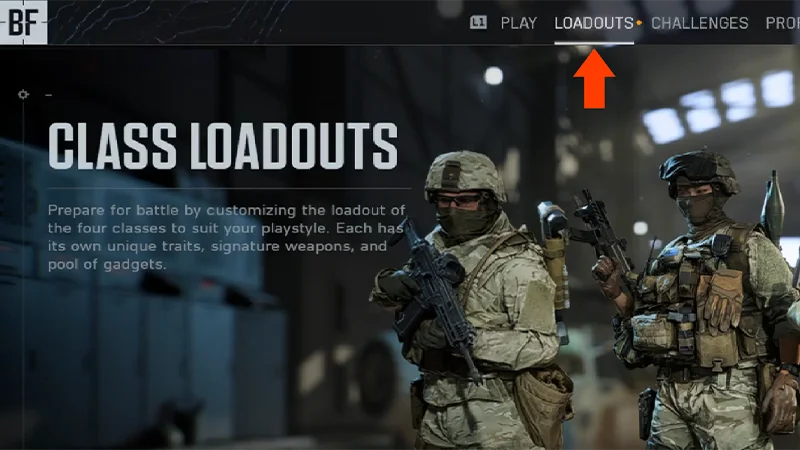
Pre-order content
Battlefield 2042 unlocks
Battlefield 6 Beta rewards
- If you ordered the Phantom Edition, you’ll get all the Phantom Edition content and the Tombstone Pack pre-order content.
- If you ordered the Standard Edition, you’ll get the Tombstone Pack pre-order content.
- Tombstone Pack Pre-Order Offer
- Features a soldier skin and a Tombstone XP Boost Set
- Battlefield Pro Token: Battle Pass, 25 tier skips, exclusive rewards and more
- Phantom Squad: Crossbones, Mirage, Specter, and Wraith soldier skins
- Glimmer melee knife weapon skin
- Shrouded M433 weapon package
- Drop Shadow MS2010 ESR weapon package
- Chimera M1A2 SEPV3 vehicle skin
- Death’s Head weapon sticker
- Cryptic weapon charm
- Operative dog tag
- Phantom XP boost set: 2x hardware XP and 2x career XP
- Tombstone Pack Pre-Order Offer
- Features a soldier skin and a Tombstone XP Boost Set
EA SPORTS™ College Football
There are some missing items we can’t help you with:- limited edition cards
- missing XP
- mistaken picks on Draft Packs.
Missing Coins or Points
Missing Packs, Players, or items
Missing EA Play rewards
- If you’re missing Coins, make sure you haven’t already spent them.
- If you’re missing Points, check your transaction or order history to make sure your Points purchase was successful.
- On the EA app, go to Account Settings and check your Order History.
- On Xbox, choose Profile and go to Account. Select Payment & Billing and then Order History.
- On PlayStation®, head to Profile and select Transaction History.
EA SPORTS FC™
If you Quick Sold or discarded a Player Item in EAS FC Ultimate Team™ and want to get it back, you can use Quick Sell Recovery for up to seven days to get it back. Read our Quick Sell Recovery guide for help. For other missing Items, Packs, Points, and Rewards, here’s what to do.EA SPORTS FC™ Items and Packs
EA SPORTS FC™ Points
EA SPORTS FC™ Rewards
EA SPORTS FC™ YouTube Rewards
If you lost something from your EAS FC Ultimate Team™:Player Items that have been discarded or submitted into a Squad Building Challenge (SBC) can’t be recovered.
If you’re missing a different item:
- 1Restart Ultimate Team™.
- 2Make sure you didn’t Quick Sell the Player or Player Item. You can undo up to 5 Quick Sells for Player Items per 31-day period with the Quick Sell Recovery tool.
- 3Check out the EAS FC Direct Communication channel for issues.
If you’re missing a different item:
- 1Double-check your Club to make sure it’s not there.
- 2Check the Store to see if you have any unclaimed Items.
- 3Check Transfer Targets to see if your Player Item purchase in the Transfer Market was successful.
- 4Check your Won Items and Expired Items to see if it’s there.
- If a Player Item gets stuck after you’ve bought it from the Transfer Market, it should be automatically corrected within 72 hours. Check your Transfer Targets to see if your Item appears after 72 hours.
- 5Make sure you didn’t Quick Sell the Player. You can undo up to 5 Quick Sells for Player Items per 31-day period with the Quick Sell Recovery tool.
- 6Look for the Pack in your My Packs section of the Ultimate Team™ Store in EAS FC Ultimate Team™
- In EA SPORTS FC™ 24 VOLTA FOOTBALL™, you’ll find it in the Change Outfit section under Customise.
Madden NFL
Missing Coins or Points
Missing Packs, Players, or items
Missing content on a next-generation console
- If you’re missing Coins, make sure you haven’t already spent them.
- If you’re missing Points, check your transaction or order history to make sure your Points purchase was successful.
- On the EA app, select Account from the menu bar and choose Order History.
- On Xbox, choose Profile and go to Account. Select Payment & Billing and then Order History.
- On PlayStation®, head to Profile and select Transaction History.
The Sims 4
Where to find rewards
Missing Awesome Animal Hats
Missing Life of the Party or Up All Night
Missing Perfect Patio Stuff
After claiming your rewards, you can find them in Build Mode or Create a Sim. All reward Items are marked with a Plumbob icon.To find Items in Build Mode:To find Items in Create a Sim:Consumables and collectiblesConsumables and collectibles like plants, potions, and crystals, can only be unlocked in Live Mode. Enter Live Mode and open the Event Screen by selecting the Event Icon in the top-left corner. Then, select Claim.Once you claim these rewards, you’ll find them in your Sim’s personal inventory. In Live Mode, select the storage box icon from the bottom left to access your Sim’s personal inventory. If you sell or delete a collectible reward you unlocked, you can buy it through Buy Mode.
- Open Build Mode and select Filter Items.
- Open the Special drop-down and check Event Rewards. This will filter Build Mode to only show reward Items.
- Open Create a Sim.
- Select the Filter Items menu.
- Choose the Special drop-down and check Event Rewards. This will filter Create a Sim to only show reward Items within each category.
Mobile games
The fastest way to get support is by creating a case inside your game. Learn how to get help in your mobile game.
Troubleshoot missing Twitch Drops
If you can’t find your Twitch Drops, try these steps.Some streams can enter you in a draw for a Drop, which doesn’t guarantee you’ll get rewards.
Check your Drops Inventory on Twitch to make sure you’ve completed the watch time needed to earn your Drop. We can’t help with Drops you haven’t earned.
Check your Drops Inventory on Twitch to make sure you’ve completed the watch time needed to earn your Drop. We can’t help with Drops you haven’t earned.
Twitch Drops are delivered to the first platform you log in to. If you signed in to a different platform, your Drop will be there. We can’t transfer Drops if they were claimed on the wrong platform.
Make sure the EA Account where you expected your Drop is linked to your Twitch account.
If your Twitch account is linked to a different EA Account, your Drop might be there. We can’t get your rewards back if they’ve been claimed on the wrong account or platform.
If your Twitch account is linked to a different EA Account, your Drop might be there. We can’t get your rewards back if they’ve been claimed on the wrong account or platform.
Troubleshoot missing Prime Gaming loot
If you can’t find your Prime Gaming loot, try these steps.- 1Make sure your accounts are linked
To get your Prime Gaming loot, your EA Account has to be linked to your platform account and your Amazon account.
You can check which accounts your EA Account is linked in your Account Settings.
All three accounts have to be linked together correctly. If they’re not, your loot might be sent to the wrong EA or platform account.
We can’t get your rewards back if they’ve been claimed on the wrong account or platform. Learn more in our account linking article. - 2Claim your content again
- 1Open a new browser window in private or incognito mode.
- 2Use this link to claim your content again. If it asks you to link your EA Account again, follow these steps to link your accounts.
- 3Once you relink, any pending items should go to your linked account.